How to Turn Off AI in Chrome, Gmail, Word and More
Turn off AI in Chrome, Gmail, Word, Windows 11 and iPhone. See which switches fully remove it, which only hide a button, and what can't be turned off.
- Published
- Updated
- Reading time
- 14 min
- Category
- AI Tools

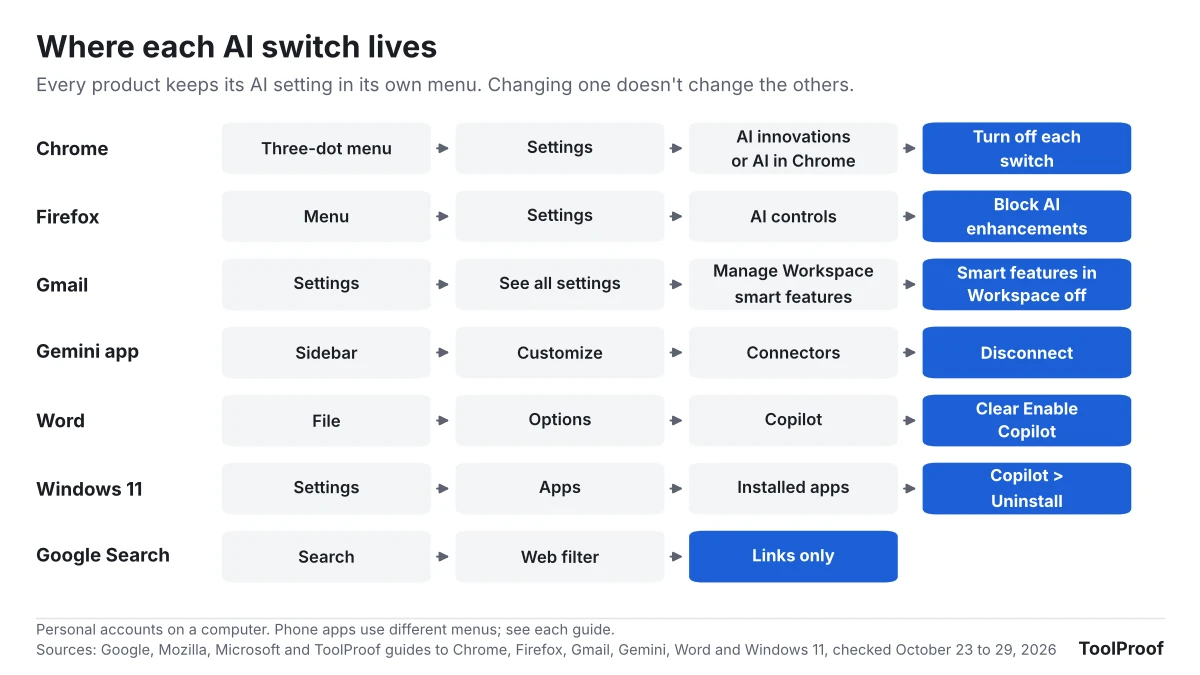
There is no single switch that turns off AI everywhere. Each app has its own setting: Settings > AI innovations (called AI in Chrome on some computers) in Chrome, Settings > AI controls in Firefox, Settings > Copilot and AI in Microsoft Edge, Manage Workspace smart feature settings in Gmail, File > Options > Copilot in Word, Settings > Apps > Installed apps to remove the Copilot app from Windows 11, and a separate switch for each Apple Intelligence feature on an iPhone with iOS 27. Google Search is the exception: Google says AI Overviews can't be turned off, so the closest you can get is the Web filter after each search.
Some of these switches remove the AI feature completely, while others only hide a button. To tell them apart, we read Apple, Google and Microsoft's own help pages on October 23, 2026, and combined them with our earlier guides, which checked Chrome's menus against its source code and matched every Gmail and Word AI feature to the setting that controls it. The table below shows how far each switch goes; the sections after it give the steps and link to the full guide for each product.
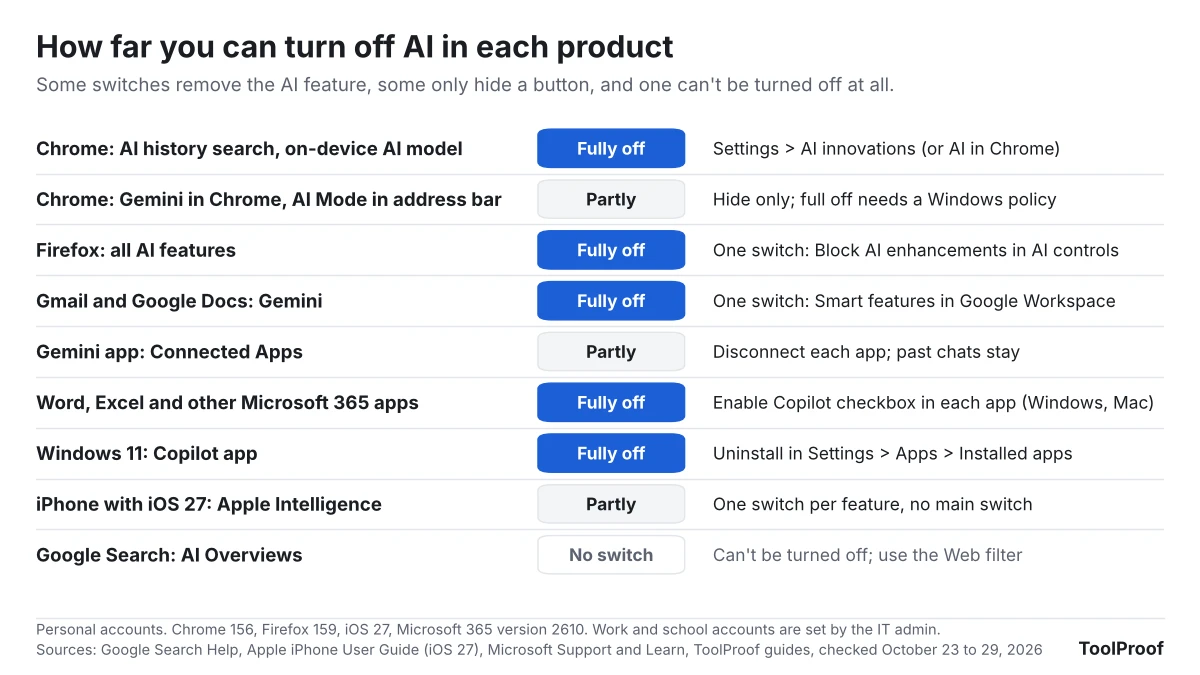
| Product | Can you fully turn it off? | Where | Full guide |
|---|---|---|---|
| Chrome | Partly in Settings, fully with a Windows policy | Settings > AI innovations or AI in Chrome | Turn off AI in Chrome |
| Firefox | Yes, one switch | Settings > AI controls > Block AI enhancements | Turn off AI in Firefox |
| Microsoft Edge | Partly; one switch hides Copilot from the toolbar and menus | Settings > Copilot and AI > Show Copilot button in toolbar | Turn off Copilot in Edge |
| Gmail (and Docs) | Yes, one switch | Settings > See all settings > General > Manage Workspace smart feature settings | Turn off Gemini in Gmail |
| Gemini app | Disconnect each app | Customize > Connectors | Gemini Connected Apps |
| Google Search | No | Web filter on each search | This page |
| Word (and other Microsoft 365 apps) | Yes, one checkbox per app on Windows and Mac | File > Options > Copilot | Turn off Copilot in Word |
| Windows 11 Copilot app | Yes, uninstall it | Settings > Apps > Installed apps | Turn off AI in Windows 11 |
| iPhone (iOS 27) | Feature by feature | Settings app, a different spot for each feature | Turn off Apple Intelligence on iPhone |
Is there one switch that turns off all AI?
No setting on your phone or computer turns off AI in every app at once. Some apps have one switch for their own AI, such as Firefox's Block AI enhancements, which also blocks AI features added in later updates, but even that covers only Firefox. Each product's AI is controlled where that product's other settings live, and turning off one doesn't change the others. Gmail's switch doesn't affect Chrome, and Word's checkbox doesn't affect Excel or Windows.
The words also differ by company. Google groups its switches under "smart features," "AI innovations" and "AI in Chrome," Mozilla under "AI controls," Microsoft under "Copilot" and "connected experiences," and Apple under "Apple Intelligence & Siri." Searching each app's settings for those words is the quickest way to find a switch we don't cover here.
How to turn off AI in Chrome
Chrome's AI switches are on one page: open the three-dot menu, choose Settings, then click AI innovations, which some computers show as AI in Chrome. Both names open the same page with the same switches. In our October 29, 2026 test of Chrome 156, all 10 new Chrome profiles showed AI innovations at first, and 3 of the 10 showed AI in Chrome after a restart. Two computers on the same Chrome version can show different names. In Chrome 156 that page lets you turn off History search, powered by AI, stop Help me write from offering itself, and turn off On-device AI, which also deletes the AI model Chrome downloaded to your computer.
Gemini in Chrome and AI Mode in the address bar have no full off switch in Settings. You can hide Gemini's button and shortcut, but removing it completely takes a Chrome policy set with Registry Editor on Windows. Our guide to turning off AI in Chrome, including the on-device model lists every switch with the matching policy, checked against Chrome's own source code. One newer Gemini feature sits elsewhere: since October 28, 2026, Chrome's enhanced autofill can fill forms with details from Gmail for some US users, and its switch is under Autofill and passwords, as our look at Chrome enhanced autofill and Gmail shows. The same page has Smarter form understanding, which shares the page's URL and content with Google to fill hard-to-read forms, and our test of Chrome autofill settings explains it alongside the regular autofill switches.
Chrome 156 also changed a security default: it now stops you before opening sites without HTTPS. That change isn't AI, but if you're reviewing Chrome's settings anyway, our look at Chrome's new warning before insecure HTTP sites compares its Standard and Enhanced protection options. If you're coming to Chrome from Arc, which stops working on December 22, our look at Arc's shutdown and the move to Dia covers what you can bring with you and the AI defaults in Dia, Arc's replacement.
How to turn off AI in Firefox
Firefox has one switch for all of its AI: open the menu, choose Settings, click AI controls, turn on Block AI enhancements, and click Block. In Firefox 159, released October 27, 2026, it blocks translations, the AI chatbot in the sidebar, link preview summaries, tab group suggestions, speech recognition, PDF image descriptions and Smart Window, Firefox's AI assistant window. You can type disable ai in the address bar to jump to the same page.
In our test on a new profile, the chatbot and translation items disappeared from the right-click menu and the block stayed on after a restart. You can then set a single feature, such as Translations, back to Available. The switch doesn't cover search engines, so Perplexity stays in Firefox's search settings and Google's AI Overviews still appear on Google. Our guide to turning off AI in Firefox on desktop and mobile shows what the switch removes and covers the Android and iPhone apps.
How to turn off Copilot in Microsoft Edge
Edge has no single switch for all of its Copilot features. Open Settings and more (...), choose Settings, select Copilot and AI, and turn off Show Copilot button in toolbar. In our test of Edge 156.0.4314.56 on a new signed-out profile on October 30, 2026, that switch also removed Summarize with Copilot from the right-click menu, the Copilot icon from the menu that appears when you select text, and the Ctrl+Shift+. shortcut.
One item stayed: Help me rewrite in the right-click menu of text boxes, even after we also turned off Use writing assistance under Settings > Languages. Copilot Mode is gone too, since Microsoft retired it in May 2026. Our guide to turning off Copilot in Microsoft Edge compares what each switch removes and covers the context clues, new tab page and Cowork switches.
How to turn off Gemini in Gmail and Google Docs
One setting turns off Gemini in Gmail, Google Docs and the other Google Workspace apps for a personal Google account: Smart features in Google Workspace. On a computer, open Gmail, click Settings (the gear), then See all settings, scroll to Google Workspace smart features on the General tab, click Manage Workspace smart feature settings, turn the switch off, and click Save. The Gmail apps for Android and iPhone have the same switch under their own settings.
That switch also stops Gmail events, such as flight itineraries, from appearing in Google Calendar. Inbox tabs and Smart Compose are controlled by a different checkbox and stay on. Our guide to turning off Gemini in Gmail lists what each of Gmail's three smart feature switches removes and how to hide only AI Inbox or Proofread instead.
How to stop the Gemini app from using your other apps
The Gemini app can read your Gmail, Calendar, Photos and dozens of outside apps through Connected Apps, which is separate from Gmail's switch. Go to gemini.google.com, select Customize in the sidebar, open the Connectors tab, and choose More options > Disconnect next to each app you don't want Gemini to reach.
Disconnecting stops new access but doesn't delete past chats that used the app; you delete those separately in Gemini Apps Activity. To stop Gemini from saving new chats at all, turn off Keep Activity on that page, and our guide to what changes when you turn off Keep Activity lists the features that go with it. Our look at Gemini's new Customize menu for Connected Apps sorts Google's list of 83 apps and shows what stays behind after you disconnect. If Gemini reaches your car, our guide to Gemini on Android Auto with Personal Intelligence covers the same settings from the driver's seat.
If you use Gemini on the free plan, it now answers mostly with a lighter model, as our report on the Gemini free plan's switch to Flash-Lite explains. And Gems are being replaced by skills, which our guide to moving Gemini Gems to skills walks through.
How to turn off AI Overviews and AI Mode in Google Search
You can't turn off AI Overviews in Google Search. Google's AI Overviews help page (opens in a new tab) says they are "a core Google Search feature, like knowledge panels. Features cannot be turned off." What you can do is select the Web filter after you search; Google says it "displays only text-based links without features like AI Overviews."
AI Mode is a separate, longer AI search experience that Google describes as an expansion of AI Overviews on its AI Mode help page (opens in a new tab). Neither help page lists a setting to turn AI Mode off. On mobile, Google says selecting Show more at the bottom of an AI Overview opens it, so skipping that button keeps you in the regular results.
You may also find a switch called AI in Search under Labs. Turning it off only takes you out of Google's early AI experiments and their email alerts, according to the same AI Overviews page. It doesn't remove AI Overviews from your results.
If you connected Gmail or Google Photos to AI Mode through Personal Intelligence, Google's October 16, 2026 privacy policy lets what Search learns from them shape ads too. Our article on Google Personal Intelligence using Gmail and Photos for ads shows how to disconnect them. Your phone number has its own ads setting in each Google account, which our guide to removing a phone number from your Google account shows how to turn off.
How to turn off Copilot in Word, Excel and other Microsoft 365 apps
In Word on Windows, go to File > Options > Copilot, clear Enable Copilot, select OK, and restart Word. On a Mac, the same checkbox is under Word > Preferences > Authoring and Proofing Tools > Copilot. The checkbox works only in the app you change and only on that computer, so repeat it in Excel, PowerPoint and on your other devices.
Word for the web, iPhone, iPad and Android have no Copilot checkbox. There, the only way is a privacy setting that also turns off dictation, Translator and text predictions in every Microsoft 365 app on every device you sign in to. Our guide to turning off Copilot in Word compares both methods device by device and covers work and school accounts.
How to remove the Copilot app from Windows 11
On Windows 11, Copilot is an app you can uninstall. Microsoft says the Copilot app (opens in a new tab) comes installed on new Windows 11 PCs and is pinned to the taskbar or Start menu, and its IT guide to managing the Copilot app (opens in a new tab) says it can be removed from Settings:
- Select Start > Settings > Apps > Installed apps.
- Find Copilot in the list.
- Select More (the three dots) next to it, then Uninstall.
These are the same steps Microsoft gives for uninstalling any app in Windows (opens in a new tab). If you change your mind, you can get Copilot again from the Microsoft Store. Removing the Windows app doesn't touch Copilot inside Word, Excel or other Microsoft 365 apps, which have their own switch (see the section above). The Copilot app is only one of Windows 11's AI features; our guide to turning off AI in Windows 11 covers Recall, Click to Do, AI actions, Notepad and Paint as well.
How to turn off Apple Intelligence on iPhone
On iPhone with iOS 27, you turn off Apple Intelligence one feature at a time in the Settings app. Apple says the new Apple Intelligence is "integrated deeply into the OS" and becomes available automatically on supported iPhones when you update to iOS 27 (Apple Support (opens in a new tab)). Apple's iOS 27 guide to turning off Apple Intelligence features (opens in a new tab) lists a separate switch for each feature rather than one main switch:
| To turn off | In Settings, go to |
|---|---|
| Siri AI (Beta) | Siri, then Turn Off Siri (tap it twice to confirm) |
| Siri AI, but keep the older Siri | Turn off Siri as above, then Turn on Siri > Siri Classic |
| Message summaries | Apps > Messages, turn off Summarize Messages |
| Email summaries | Apps > Mail, turn off Summarize Message Previews |
| Notification summaries | Notifications > Summarize Notifications, turn it off |
| Priority notifications | Notifications > Prioritize Notifications, turn it off |
| Smart replies in Mail | Apps > Mail, turn off Personalize Smart Replies |
| Voicemail suggestions | Apps > Phone, turn off Suggestions in Voicemail |
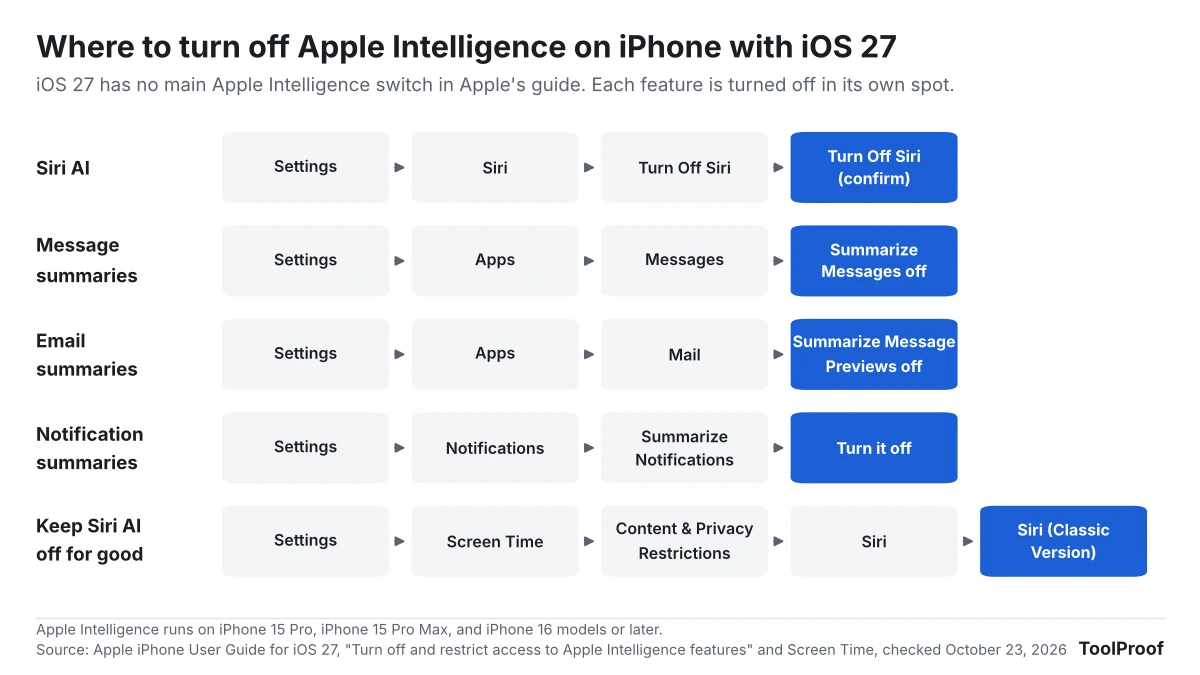
To keep the AI version of Siri off for good, or on a child's iPhone, use Screen Time. Apple's Screen Time guide (opens in a new tab) says to go to Settings > Screen Time > Content & Privacy Restrictions > Siri and choose Siri (Classic Version) to allow Siri without AI, or Don't Allow Siri to block it. With Siri AI allowed, the same page lets you block single abilities such as Image Creation.
Apple Intelligence runs only on the iPhone 15 Pro, iPhone 15 Pro Max, iPhone 16 models and later, so older iPhones don't have these features to turn off. Our full guide to turning off Apple Intelligence on iPhone adds the smaller switches in Mail, Phone and Journal, what has no switch at all, and the iPad and Mac paths. Since iOS 27.2 on October 26, 2026, Siri AI can also recall your past conversations and use your voicemails, and our look at what iOS 27.2 changed for Siri shows which settings limit that. To see or delete what Siri has already saved, our guide to Siri history on iPhone covers the Siri app and the Siri & Dictation History button.
What turning off AI doesn't do
Turning off an AI feature stops new use, but it doesn't delete what the AI already saved. Each company keeps that history in a separate place:
- Copilot in Microsoft 365 apps: delete past prompts in your Microsoft account's privacy dashboard, as our Word guide's section on deleting Copilot history explains.
- Gemini: delete past chats, including ones that used Gmail or other connected apps, in Gemini Apps Activity (opens in a new tab).
- Chrome: turning off On-device AI is the one switch here that also deletes something, the AI model file Chrome downloaded.
- Meta AI on Instagram, Facebook and WhatsApp: deleting the Meta AI chat only clears your inbox. Send /reset-ai in the chat first to delete Meta AI's copy, as our guide to turning off Meta AI on Instagram explains.
Work and school accounts are another limit. In Microsoft 365 apps, the IT admin sets Copilot for you. In Gmail you can usually still turn off Gemini yourself, but the admin chooses the default and can turn Gemini on or off for each app on some business and school plans.
How to check whether an image was made with AI
Turning off AI in your own apps doesn't help you spot AI-made images from others. For that, upload the original file to a Content Credentials viewer and to Google's SynthID Detector, then run a reverse image search. Our guide to checking whether an image is AI-generated explains what each result means and which everyday edits strip the labels.
Which AI setting should you turn off first?
Start with the AI that can read your personal data, then deal with the buttons that only get in your way:
- If you worry about privacy: disconnect apps in Gemini's Connectors tab and turn off Smart features in Google Workspace in Gmail. These control what AI can read in your email and files.
- If AI pop-ups slow you down at work: clear Enable Copilot in Word and the other Microsoft 365 apps you use, and turn off Help me write in Chrome.
- If you want a cleaner computer: uninstall the Copilot app from Windows 11 and turn off On-device AI in Chrome to free the disk space its model uses.
- If you're setting up an iPhone for a child: use Screen Time to allow only Siri Classic, then turn off the summaries you don't want.
- If AI answers in Google Search bother you: use the Web filter. There's no setting that hides AI Overviews for good.
How we checked
On October 23, 2026, we read Google's AI Overviews and AI Mode help pages, Apple's iOS 27 iPhone User Guide pages on turning off Apple Intelligence features and on Screen Time, Apple's Apple Intelligence overview, and Microsoft's Copilot on Windows, Copilot app management and app uninstall pages. The Chrome, Firefox, Gmail, Word and Gemini sections summarize our separate guides, each of which lists its own sources and test dates; we added the Firefox section on October 28, 2026. On October 29, 2026, we started Google Chrome 156.0.8078.73 for Linux with 10 new profiles, twice each, without signing in, and noted the name of the AI item in the Settings menu each time. We didn't have an iPhone with iOS 27 or a Windows 11 PC, so the iPhone and Windows steps come from Apple's and Microsoft's instructions rather than our own screens.