How to Turn Off AI in Windows 11
Windows 11 has no single AI switch. Turn off Copilot, Recall, Click to Do and AI actions in Settings, see what Paint and Notepad allow, and remove AI models.
- Published
- Reading time
- 11 min
- Category
- AI Tools

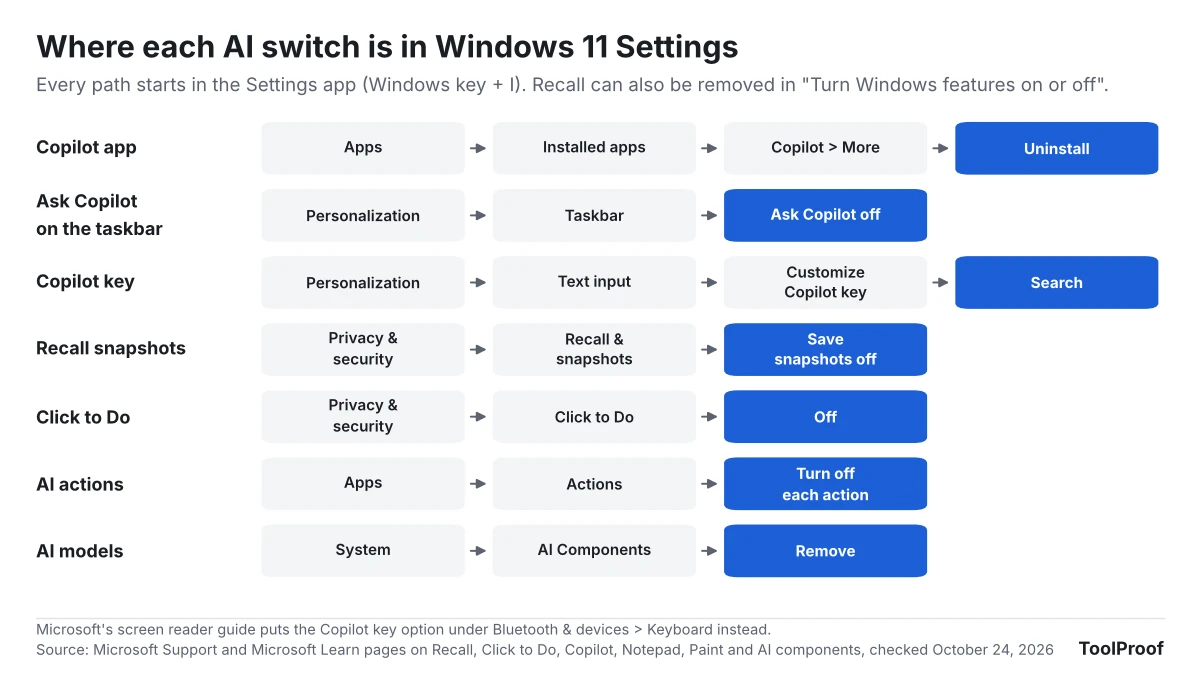
Windows 11 has no single switch that turns off all of its AI. You turn it off one feature at a time in the Settings app: uninstall the Copilot app under Settings > Apps > Installed apps, turn off Save snapshots under Settings > Privacy & security > Recall & snapshots, set Click to Do to Off on the same Privacy & security page, and turn off AI actions under Settings > Apps > Actions. Many of these features exist only on Copilot+ PCs, so on an ordinary Windows 11 PC the list is shorter.
We read more than 20 Microsoft Support and Microsoft Learn pages on October 24, 2026, and checked them against each other. Every step below uses the Settings app or an app's own menu. We left out Group Policy, Registry Editor and the "debloat" scripts many guides suggest: Microsoft says its Turn off Windows Copilot policy is due to be retired, and the other AI policies are meant for IT admins managing work PCs. We didn't have a Windows 11 PC to test on, so the menu names come from Microsoft's own guides.
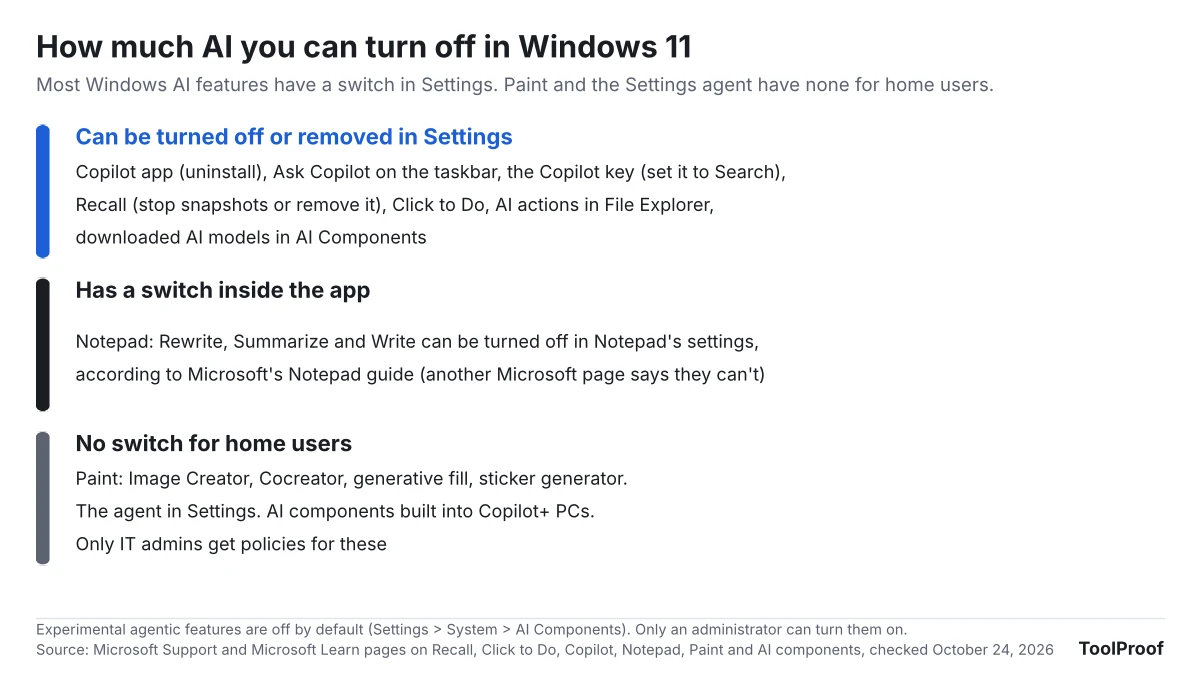
| AI feature | Where to turn it off | Fully off? |
|---|---|---|
| Copilot app | Settings > Apps > Installed apps, then Uninstall | Yes, removed |
| Ask Copilot on the taskbar | Settings > Personalization > Taskbar | Yes |
| Copilot key | Settings > Personalization > Text input > Customize Copilot key on keyboard | Yes, set it to Search |
| Recall (Copilot+ PCs) | Settings > Privacy & security > Recall & snapshots, or remove it in Turn Windows features on or off | Yes, removable |
| Click to Do (Copilot+ PCs) | Settings > Privacy & security > Click to Do | Off, but can't be removed |
| AI actions in File Explorer | Settings > Apps > Actions | One action at a time |
| Notepad AI | Notepad's own settings | Yes, per Microsoft's Notepad guide |
| Paint AI | No setting | No |
| Downloaded AI models | Settings > System > AI Components | Yes, removed |
Can you turn off all AI in Windows 11?
No, Windows 11 has no single setting that turns off every AI feature. Each feature is controlled where its other settings live: Recall and Click to Do under Privacy & security, the Copilot app under Apps, Notepad's AI inside Notepad. Turning off one doesn't change the others, and some features have no off switch for home users at all.
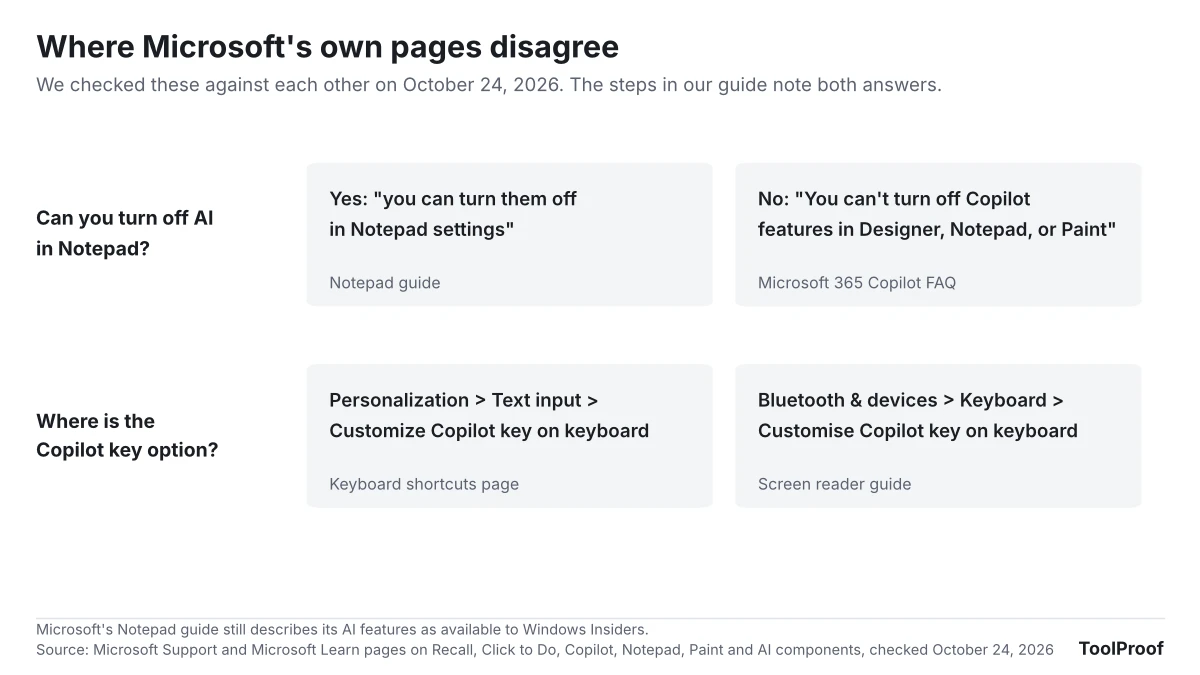
Microsoft's own pages also don't agree on everything. Its Notepad guide (opens in a new tab) says you can turn Notepad's AI off in Notepad's settings, while its Microsoft 365 Copilot FAQ (opens in a new tab) says "You can't turn off Copilot features in Designer, Notepad, or Paint." We note both answers in the steps below.
Which AI features does your PC have?
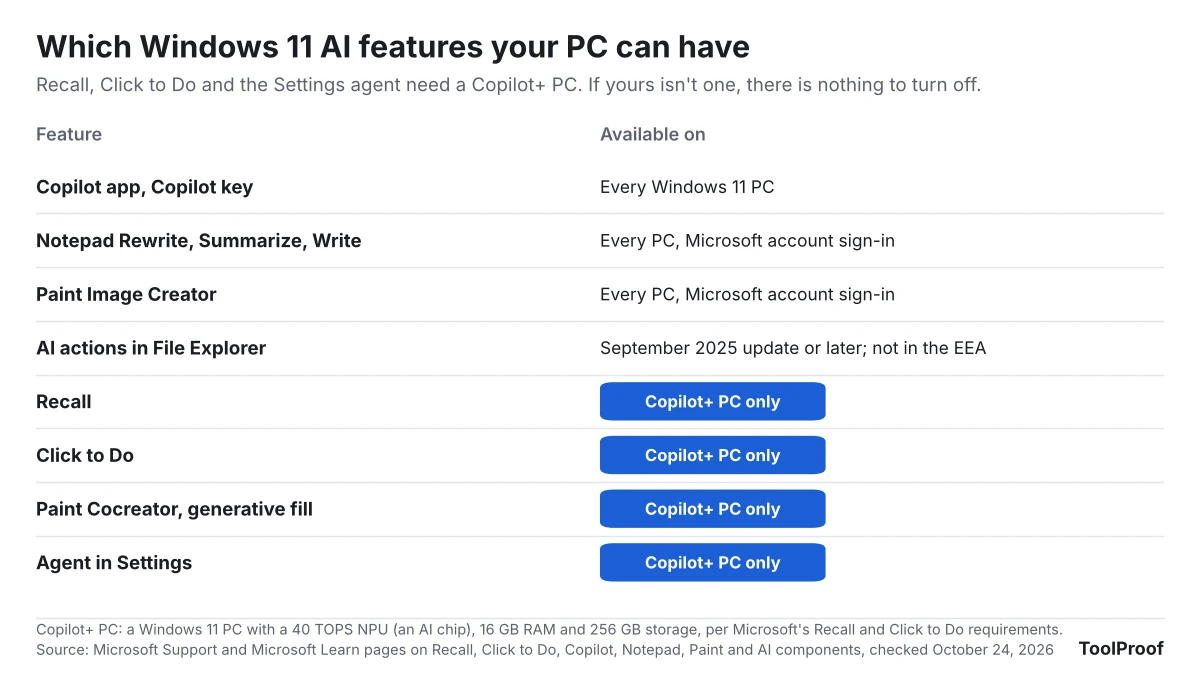
Recall, Click to Do, the agent in Settings and Paint's Cocreator need a Copilot+ PC, so most Windows 11 PCs don't have them. A Copilot+ PC is a newer Windows 11 PC with an NPU, a chip for AI tasks, rated at 40 TOPS or more, plus at least 16 GB of memory and 256 GB of storage, according to Microsoft's requirements for Recall (opens in a new tab) and Click to Do (opens in a new tab). If your PC isn't one, skip those sections.
Every Windows 11 PC can have the Copilot app and the Copilot key behavior. Notepad's Rewrite, Summarize and Write, and Paint's Image Creator, run as online services and need you to sign in with a Microsoft account and spend AI credits.
How to remove the Copilot app from Windows 11
You can uninstall the Copilot app like any other app. Microsoft's guide to managing the Copilot app (opens in a new tab) and its app uninstall instructions (opens in a new tab) give the same steps:
- Open Start > Settings > Apps > Installed apps.
- Find Copilot in the list.
- Select More (the three dots) > Uninstall.
You can get the app back from the Microsoft Store later. Removing it doesn't touch Copilot inside Word, Excel and other Microsoft 365 apps, which have their own checkbox. Our guide to turning off Copilot in Word covers that switch on Windows and Mac.
To keep the app but take the Ask Copilot button off the taskbar, go to Settings > Personalization > Taskbar and turn off Ask Copilot, according to Microsoft's Copilot settings guide (opens in a new tab).
How to change what the Copilot key does
You can make the Copilot key on your keyboard open Windows search instead of Copilot. Microsoft's keyboard shortcuts page (opens in a new tab) gives this path:
- Open Settings > Personalization > Text input.
- Select Customize Copilot key on keyboard.
- Choose Search.
Microsoft's screen reader guide lists the same option under Settings > Bluetooth & devices > Keyboard instead, and says the choices can include Search, Microsoft Copilot and Custom, depending on your account and installed apps. If you don't see it in one place, check the other. The same guide notes that if Ask Copilot is turned on in the taskbar settings, it overrides your choice for the key, so turn that off too.
How to turn off Recall
Recall saves nothing until you turn it on, so on most PCs there is nothing to stop. Microsoft says saving snapshots, the screenshots Recall takes every few seconds, is off by default, and Windows asks your permission first (Recall guide (opens in a new tab)). If you turned it on earlier:
- Open Settings > Privacy & security > Recall & snapshots.
- Turn off Save snapshots.
- Confirm with Windows Hello (your face, fingerprint or PIN) when asked.
From the same page you can delete the snapshots already saved. To pause it temporarily instead, select the Recall icon in the system tray (next to the clock) and choose the pause option, according to Microsoft's Recall privacy page (opens in a new tab). Advanced settings > Reset Recall deletes every snapshot and resets Recall's settings, but snapshots you exported to a folder stay.
How to remove Recall completely
You can uninstall Recall itself, because Microsoft treats it as an optional Windows feature:
- Type Turn Windows features on or off in the search box on the taskbar and open it.
- Clear the Recall checkbox.
- Restart your PC.
Microsoft says any snapshots saved earlier are deleted when Recall is removed. To bring it back, check Recall in the same window and restart. On PCs managed by a work or school, Recall is removed by default until IT allows it, and Microsoft says an admin can't turn on snapshots without you.
How to turn off Click to Do
Click to Do is on by default on Copilot+ PCs, and you can turn it off but not remove it. Click to Do is the tool that opens with Windows key + Q or Windows key + click and suggests actions for the text or image on your screen. According to Microsoft's Click to Do guide (opens in a new tab):
- Open Settings > Privacy & security > Click to Do.
- Set Click to Do to Off.
After that, the keyboard shortcuts and the right swipe on touch screens no longer open it. Other apps, such as Snipping Tool, may still show a Click to Do button, but Microsoft says selecting it gives a "Couldn't open Click to Do" error. Microsoft says Click to Do reads your screen on the PC itself and sends content online only when you pick an action such as Search the web.
How to turn off AI actions in File Explorer
Microsoft points to Settings > Apps > Actions for turning off AI actions one by one. AI actions appear when you right-click a file in File Explorer and choose AI actions. Microsoft added them in the September 29, 2025 update (opens in a new tab): four actions for JPG and PNG images (Visual Search, Blur Background, Erase Objects and Remove Background) and Summarize for Microsoft 365 files in OneDrive. The same page says they aren't offered in the European Economic Area.
Microsoft's Click to Do admin page (opens in a new tab) says users can disable the actions they don't want under Settings > Apps > Actions. The four image actions are the same ones Click to Do offers for pictures on your screen. Microsoft's pages don't say whether the AI actions entry itself leaves the right-click menu once every action is off. Microsoft's new right-click menu settings, rolling out since October 28, 2026, switch built-in commands on or off, but the release notes don't name AI actions (what the customizable right-click menu changes).
How to turn off AI in Notepad
Microsoft's Notepad guide says you can turn off Notepad's AI features, Rewrite, Summarize and Write, in Notepad's own settings. Open Notepad, go to its settings, and turn off the AI features option. Microsoft's guide doesn't give the exact name of the switch, and the same guide still describes the features as available to Windows Insiders, so your Notepad may not show it yet.
Microsoft's Microsoft 365 Copilot FAQ says the opposite: you "can't turn off Copilot features in Designer, Notepad, or Paint." If you don't find a switch, the features still do nothing unless you use them: they run only when you select Rewrite, Summarize or Write, and they need a Microsoft account sign-in and AI credits (60 a month with Microsoft 365 Personal or Family, as of October 2026). The FAQ suggests parents use Windows Family Safety to limit AI in Paint and Notepad.
Can you turn off AI in Paint?
No, Microsoft offers home users no setting to turn off Paint's AI tools. Image Creator, which makes pictures from a text description, runs online and needs a Microsoft account and AI credits, according to Microsoft's Image Creator guide (opens in a new tab). Cocreator, generative fill, sticker generator and object select need a Copilot+ PC (Paint's Copilot+ PC features (opens in a new tab)). None of them runs unless you open it from Paint's toolbar.
Microsoft's Windows AI policy list (opens in a new tab) has separate switches for Cocreator, generative fill and Image Creator, but they are policies for IT admins on managed PCs. Microsoft also says images made with any AI feature in Paint carry a Content Credentials (C2PA) label; our guide to checking whether an image is AI-generated shows how to read it.
How to remove AI models you don't use
You can delete downloaded AI models in Settings > System > AI Components. On a PC that isn't a Copilot+ PC, Windows downloads some AI models, such as its small language model, the first time an app asks for one, and Microsoft's Windows AI documentation (opens in a new tab) says these downloads "can be several GB." The same page says you can remove or reinstall them in AI Components. An app that needs a removed model may ask to download it again.
On a Copilot+ PC, the core models come built in. Microsoft lists them as Windows Copilot+ AI components (opens in a new tab), part of Windows that updates through Windows Update, and its pages give no way to remove them.
The same AI Components page holds Experimental agentic features, which lets AI agents such as Copilot Actions work in a separate account on your PC. Microsoft's agentic features page (opens in a new tab) says it is off by default and only an administrator can turn it on, so leave it off unless you chose to try those agents.
What you can't turn off
A few Windows 11 AI features have no switch for home users:
- Paint's AI tools, as above.
- The agent in Settings on Copilot+ PCs, which answers plain-language searches in the Settings app with a small on-device model. Microsoft's admin page (opens in a new tab) says it only suggests settings and changes nothing unless you ask; only IT admins get a policy to turn it off.
- Built-in AI components on Copilot+ PCs, as above.
Edge has its own Copilot settings, and Chrome has its own AI features. In Edge, one switch under Settings > Copilot and AI hides Copilot from the toolbar and the right-click menu, and our test of turning off Copilot in Microsoft Edge shows what it leaves behind. Our guide to turning off AI in Chrome covers the browser, including deleting its roughly 4 GB on-device model.
Which AI features should you turn off?
- If you never use Copilot: uninstall the Copilot app, turn off Ask Copilot on the taskbar and set the Copilot key to Search. This covers every Windows 11 PC.
- If you have a Copilot+ PC and worry about privacy: leave Save snapshots off, or remove Recall in Turn Windows features on or off so it can't be turned on by accident. Turning off Click to Do stops the screen-reading shortcut too.
- If disk space is tight: check Settings > System > AI Components for downloaded models you don't need.
- If you share the PC with children: Microsoft points to Family Safety for limiting AI in Paint and Notepad, since neither has a full off switch.
For Chrome, Gmail, Word, iPhone and Google Search, our overview of how to turn off AI in each app lists every switch in one table. If your PC runs Windows 11 Home or Pro version 24H2, which no longer gets security updates, see what to do now that 24H2 support has ended.
How we checked
On October 24, 2026, we read Microsoft Support pages on Recall, Recall privacy, Click to Do, the Copilot settings, keyboard shortcuts, Notepad's and Paint's AI features, experimental agentic features, Windows Copilot+ AI components, app removal, the September 29, 2025 update (KB5065789) and the Windows 11 version 26H2 update history, plus the Microsoft 365 Copilot FAQ. We also read Microsoft Learn pages for IT admins on managing the Copilot app, Click to Do, Notepad and the agent in Settings, the Windows AI policy list, and the Windows AI developer documentation on downloadable models. Microsoft's Recall requirements now also list "a Windows 11 AI+ PC" next to Copilot+ PCs, with the same NPU, memory and storage minimums.
We didn't have a Windows 11 PC, so we didn't see these screens ourselves. Menu names can differ slightly between Windows versions and regions; the paths above come from Microsoft's pages as of October 2026, when the current release is Windows 11 version 26H2.