How to Turn Off Copilot in Word
Turn off Copilot in Word on Windows and Mac with one checkbox, or use the privacy setting on the web, iPhone and Android. See what else that turns off.
- Published
- Reading time
- 9 min
- Category
- AI Tools

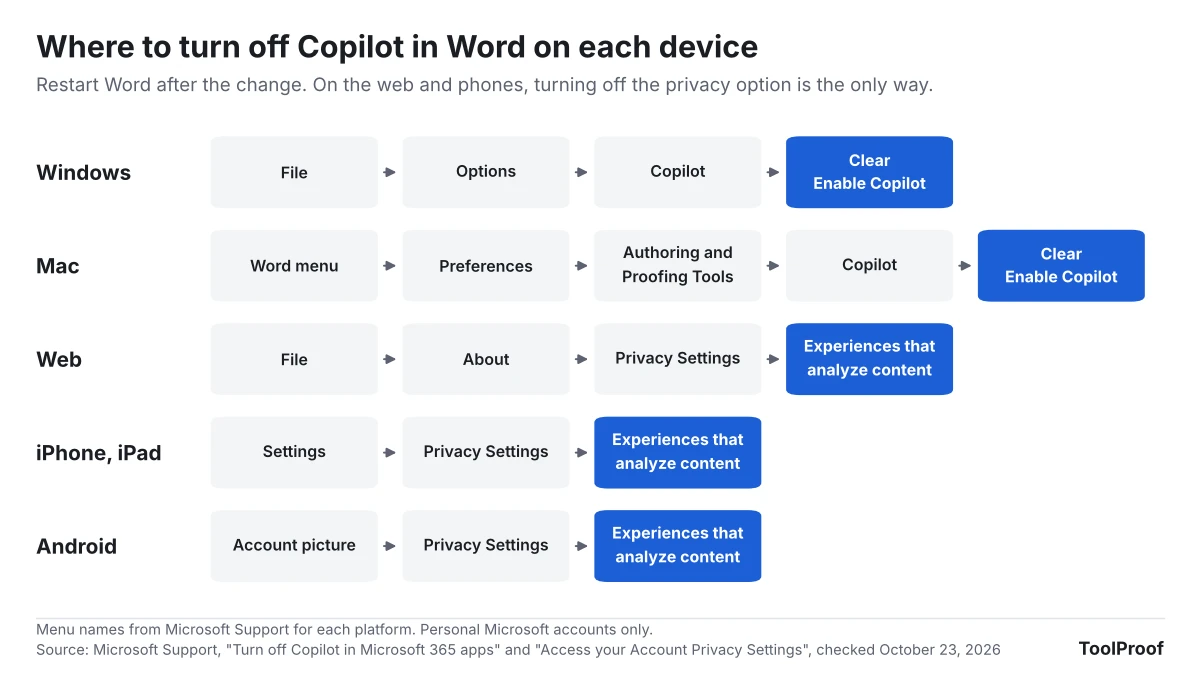
To turn off Copilot in Word on Windows, go to File > Options > Copilot, clear Enable Copilot, select OK, and restart Word. On a Mac, open the Word menu, go to Preferences > Authoring and Proofing Tools > Copilot, and clear the same checkbox. That switch turns off Copilot only in Word and only on that computer, so Excel, PowerPoint and your other devices keep it until you change them too.
Word for the web, iPhone, iPad and Android have no Copilot switch at all. There, the only way is a privacy setting that also turns off dictation, Translator and text predictions, and that change follows your Microsoft account to every device. We read nine of Microsoft's support and Learn pages on October 23, 2026, and lined up which method works on which device and what each one takes away. We didn't have Word on our test computer, so the menu names below come from Microsoft's own instructions, not our screen.
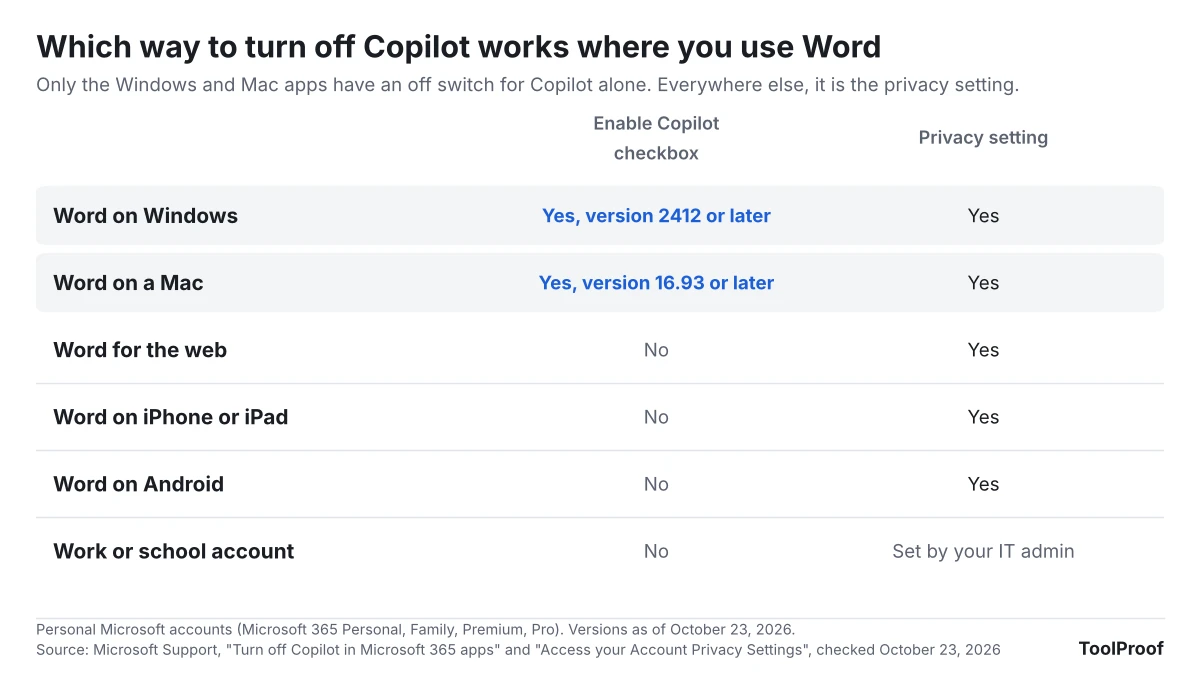
| Where you use Word | Turn off Copilot only | Privacy setting (turns off more) |
|---|---|---|
| Windows | File > Options > Copilot | File > Account > Account Privacy > Manage Settings |
| Mac | Word > Preferences > Authoring and Proofing Tools > Copilot | Word > Preferences > Personal Settings > Privacy |
| Web | Not available | File > About > Privacy Settings |
| iPhone or iPad | Not available | Settings > Privacy Settings |
| Android | Not available | Account picture > Privacy Settings |
| Work or school account | Not available | Your IT admin decides |
How to turn off Copilot in Word on Windows
The Enable Copilot checkbox in Word's options turns off Copilot in Word on Windows without touching any other feature, according to Microsoft's guide to turning off Copilot in Microsoft 365 apps (opens in a new tab).
- Open Word and select File > Options.
- Select Copilot in the list on the left.
- Clear the Enable Copilot checkbox.
- Select OK, then close Word and open it again.
After the restart, Microsoft says the Copilot button on the ribbon is disabled and none of Copilot's drafting, rewriting or chat features work in Word. To bring Copilot back, repeat the steps and check the box again.
If you don't see Copilot under Options, your Word is older than version 2412. Check your version under File > Account (Microsoft's version guide (opens in a new tab) shows where), then update Word. As of October 23, 2026, the current release on Microsoft's update history (opens in a new tab) is version 2610, so an up-to-date copy has the checkbox.
How to turn off Copilot in Word on a Mac
Word for Mac has the same Enable Copilot checkbox, inside Word's preferences, starting with version 16.93.
- Open Word and select the Word menu at the top of the screen.
- Select Preferences, then Authoring and Proofing Tools > Copilot.
- Clear the Enable Copilot checkbox.
- Quit Word and open it again.
To find your version, select Word > About Word. Microsoft's Office for Mac update history (opens in a new tab) lists 16.114.1 as the latest release on October 22, 2026, well past 16.93.
Why Copilot is still on in Excel or on your other computer
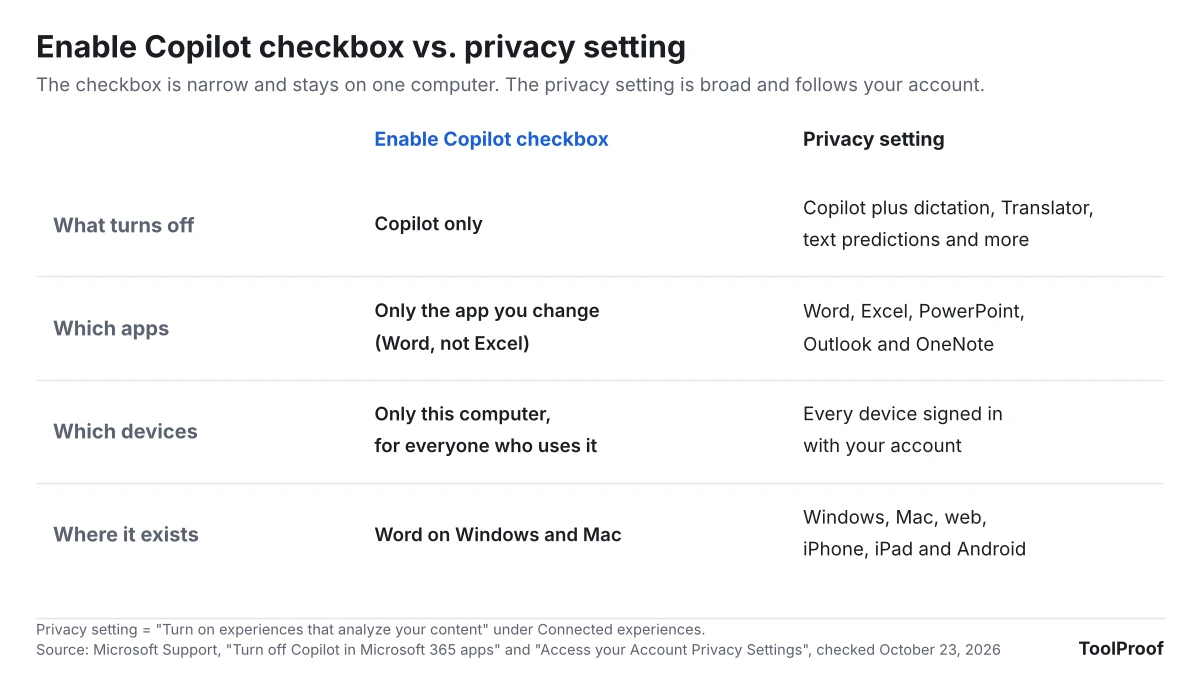
The Enable Copilot checkbox only applies to one app on one device, so turning it off in Word leaves Copilot on in Excel, PowerPoint and OneNote, and on every other computer you use. Microsoft says each app has its own checkbox and you need to clear it in each app on each device.
That works in both directions. Turning Copilot off on a shared family computer turns it off for everyone who uses Word on that computer, not just for you.
Outlook works differently. It has a Turn on Copilot toggle instead of a checkbox (Settings > Copilot in Outlook on the web and the new Outlook for Windows, Quick Settings > Copilot on Mac, iPhone and Android), and Microsoft says that choice applies to Outlook on all your devices signed in with the same account. Classic Outlook for Windows doesn't have the toggle, and Microsoft gives no date for it. The Copilot app on Windows 11 is separate again; our guide to turning off AI in Chrome, Gmail, Word and more shows how to uninstall it.
How to turn off Copilot in Word for the web, iPhone, iPad and Android
You can't turn off Copilot by itself in Word for the web or the Word apps for iPhone, iPad and Android; Microsoft says the only option there is to turn off Experiences that analyze your content in your privacy settings. Microsoft's Copilot privacy page for home users (opens in a new tab) confirms that with this setting off, Copilot features stop working in Word, Excel, PowerPoint, Outlook and OneNote.
Microsoft's guide to finding your account privacy settings (opens in a new tab) gives these paths:
- Word for the web: while editing a document, select File > About > Privacy Settings. In reading view, open the menu at the top of the page and select Privacy Settings.
- iPhone or iPad: in Word, go to Settings > Privacy Settings.
- Android: in Word, tap your account picture in the upper-left corner, then Privacy Settings.
- Any browser: sign in to account.microsoft.com/privacy (opens in a new tab) and go to Privacy > Find privacy settings in Microsoft products > Microsoft 365.
In those settings, turn off Experiences that analyze your content. On Windows and Mac the same option is called Turn on experiences that analyze your content, under Connected experiences (Windows: File > Account > Account Privacy > Manage Settings; Mac: Word > Preferences > Personal Settings > Privacy > Manage Connected Experiences), and you restart Word after you change it.
You only need to change it once. Microsoft says privacy settings travel with your account to your Windows, Mac, iPhone, iPad and Android devices the next time you sign in to a Microsoft 365 app.
What else turns off with the privacy setting?
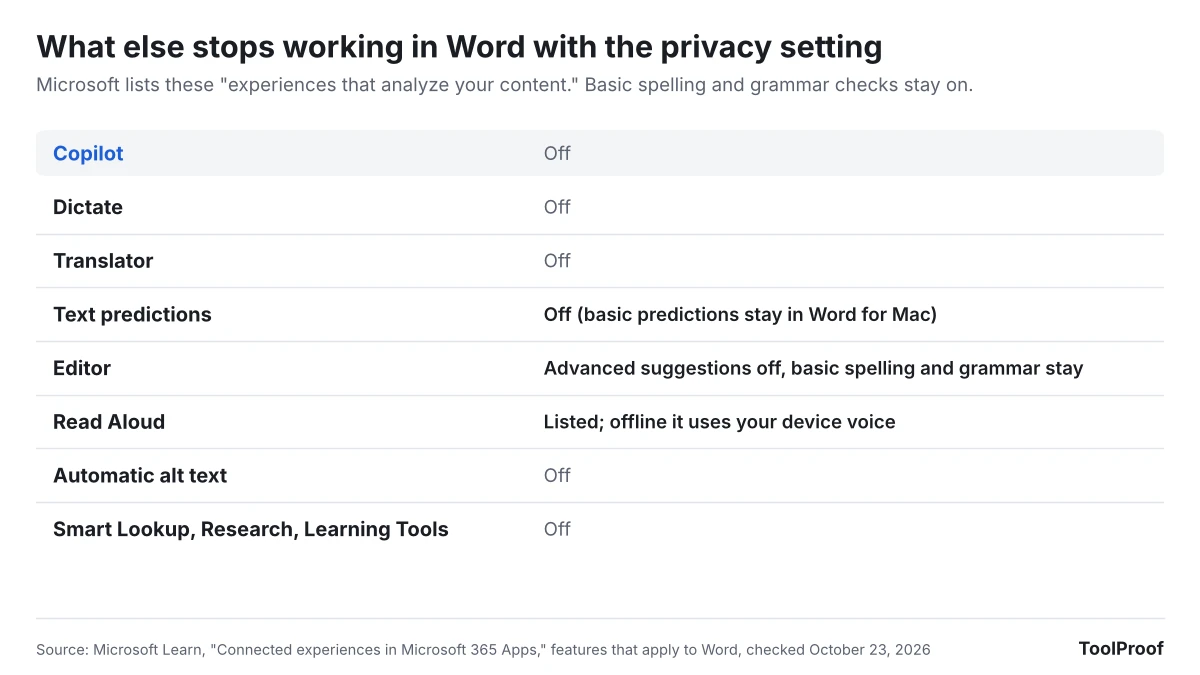
The privacy setting turns off every Microsoft 365 feature that sends your document to Microsoft's servers for analysis, not just Copilot. Microsoft's Learn page on connected experiences that analyze your content (opens in a new tab) lists them. The ones you'd notice in Word are:
- Dictate, which types what you say
- Translator
- Text predictions, which suggest the next words as you type (Microsoft says basic predictions keep working in Word for Mac)
- Editor's online suggestions. Microsoft says Editor's basic checks keep working
- Read Aloud (when you're offline, it uses your device's built-in voice)
- Automatic alt text for pictures
- Smart Lookup, Research, Learning Tools, Similarity checker and Transcribe
In PowerPoint, Designer's slide suggestions go too, and in Outlook, suggested replies. If you dictate or translate often, use the Enable Copilot checkbox on your computer instead and accept that Copilot stays in the web and phone apps.
Don't confuse this option with the one below it. Microsoft's connected experiences overview (opens in a new tab) describes a separate switch that turns off all optional connected experiences, which also stops co-authoring and online file storage. You don't need that one to turn off Copilot.
Can you turn off Copilot in Word with a work or school account?
No, the Enable Copilot checkbox and these steps apply only when you're signed in to Word with a personal Microsoft account, one you created with a personal email address. With a work or school account, Microsoft says the settings in its guide aren't available, and your organization decides whether Copilot appears and which privacy options you can change. Ask your IT department if you want it off.
How to delete what Copilot already saved
Turning off Copilot stops new prompts but doesn't erase the ones you already sent. Microsoft keeps your Copilot prompts and responses as activity history, and its guide to managing Copilot activity history (opens in a new tab) explains how to remove them:
- Sign in to account.microsoft.com/privacy (opens in a new tab) with your Microsoft account.
- Go to Privacy > Empower your productivity > Copilot > Your Copilot app activity history.
- Choose Copilot in Microsoft 365 apps.
- Select Delete all activity history, then Clear. You can select an export option first if you want a copy.
Microsoft says prompts, responses and the files you work on with Copilot in its apps aren't used to train its foundation models.
Can you just hide the Copilot button?
You can remove commands from Word's ribbon, but Microsoft says that only hides the button: Copilot stays on and you can still reach it from other places, such as the right-click menu. To change the ribbon, right-click an empty area of it and select Customize the Ribbon, as Microsoft's ribbon guide (opens in a new tab) shows. Ribbon changes also apply only to the app you make them in.
How we checked
- Microsoft support pages (opened October 23, 2026): Turn off Copilot in Microsoft 365 apps (opens in a new tab), Access your Account Privacy Settings (opens in a new tab), Copilot in Microsoft 365 apps for home: your data and privacy (opens in a new tab), Manage your Copilot activity history (opens in a new tab), Copilot in Microsoft 365 subscriptions FAQ (opens in a new tab), Connected experiences in Microsoft 365 (opens in a new tab), and the ribbon and version guides linked above.
- Microsoft Learn: the connected experiences list (opens in a new tab), from which we picked the features that apply to Word, and the update histories for Windows (opens in a new tab) and Mac (opens in a new tab).
- Where Microsoft's pages differ: the Copilot guide gives the Mac privacy path as Preferences > Personal Settings > Privacy, while the account privacy guide says Preferences > Privacy. We used the Copilot guide's path.
- What we couldn't test: we had no Microsoft 365 account, Windows or Mac on our test computer, so we didn't see Word's settings screens ourselves.
Which setting should you use?
- You use Word on one Windows PC or Mac and want Copilot gone: clear Enable Copilot in Word, then in Excel and PowerPoint if you want them clean too.
- You also use Word on the web or your phone: turn off Experiences that analyze your content once, and accept that dictation, Translator and text predictions go with it.
- You only want fewer prompts on screen: hide the button with Customize the Ribbon, knowing Copilot is still on.
- Your Word is managed by work or school: ask your IT department.
Google's AI works the same way in its own apps; our guide to turning off Gemini in Gmail and Google Docs covers the one switch that controls it. For AI features in your browser, see how to turn off AI in Chrome.
FAQ
Does turning off Copilot lower my Microsoft 365 price?
No. Both are settings inside the apps and your privacy settings, not in your subscription, so your plan and its price stay the same. If you're reviewing your plan, our look at Microsoft 365 Family's move to 2 TB of shared storage covers the other big change coming at renewal.
Why don't I see Copilot in Word at all?
Microsoft's Copilot subscription FAQ (opens in a new tab) says the AI features in Word on Microsoft 365 Family and Premium are only for the person who owns the subscription, not the people it's shared with, and that they're removed for users under a minimum age. The same FAQ lists Copilot as part of the Microsoft 365 Personal, Family and Premium plans, so it won't appear if you use Word from a one-time purchase instead; if that's Office 2021, see what Office 2021's end of support means for you.