How to Turn Off Apple Intelligence on iPhone
iOS 27 removed the single Apple Intelligence switch. See every feature you can still turn off on iPhone, what has no switch, and the iPad and Mac paths.
- Published
- Updated
- Reading time
- 10 min
- Category
- AI Tools

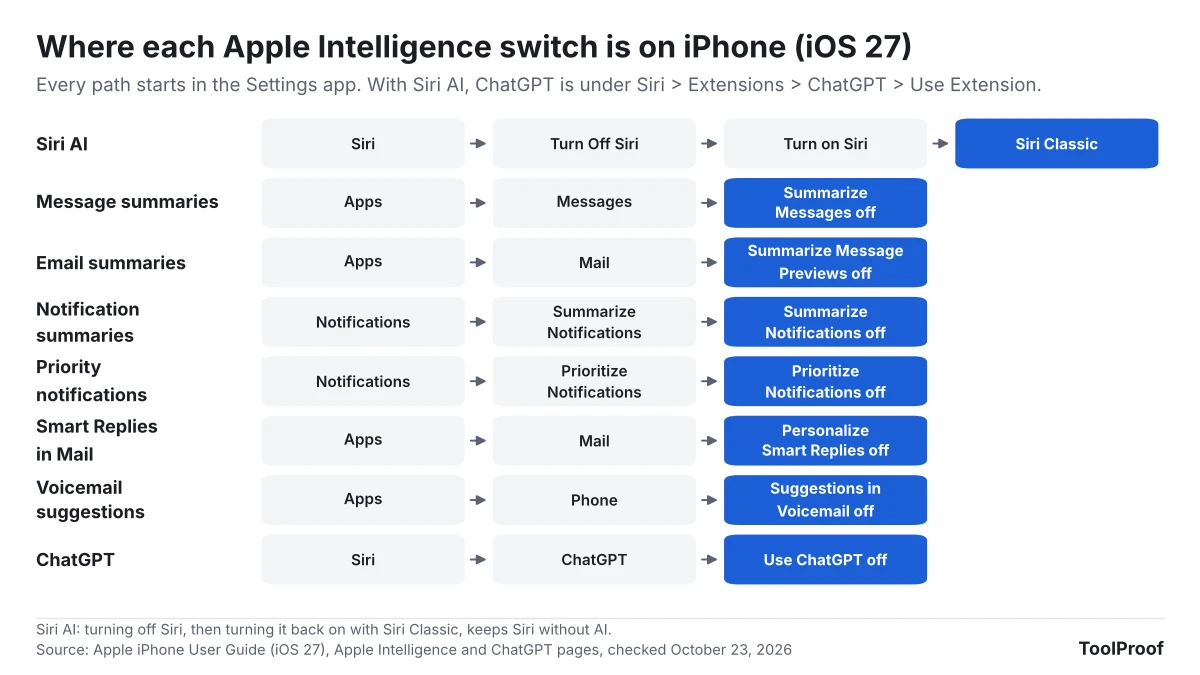
On an iPhone with iOS 27, there is no longer one switch that turns off Apple Intelligence. You turn it off one feature at a time in the Settings app: switch Siri to Siri Classic under Settings > Siri, then turn off the summaries under Settings > Notifications and Settings > Apps > Messages and Mail. To keep Siri AI off for good, use Settings > Screen Time > Content & Privacy Restrictions > Siri and allow only Siri (Classic Version).
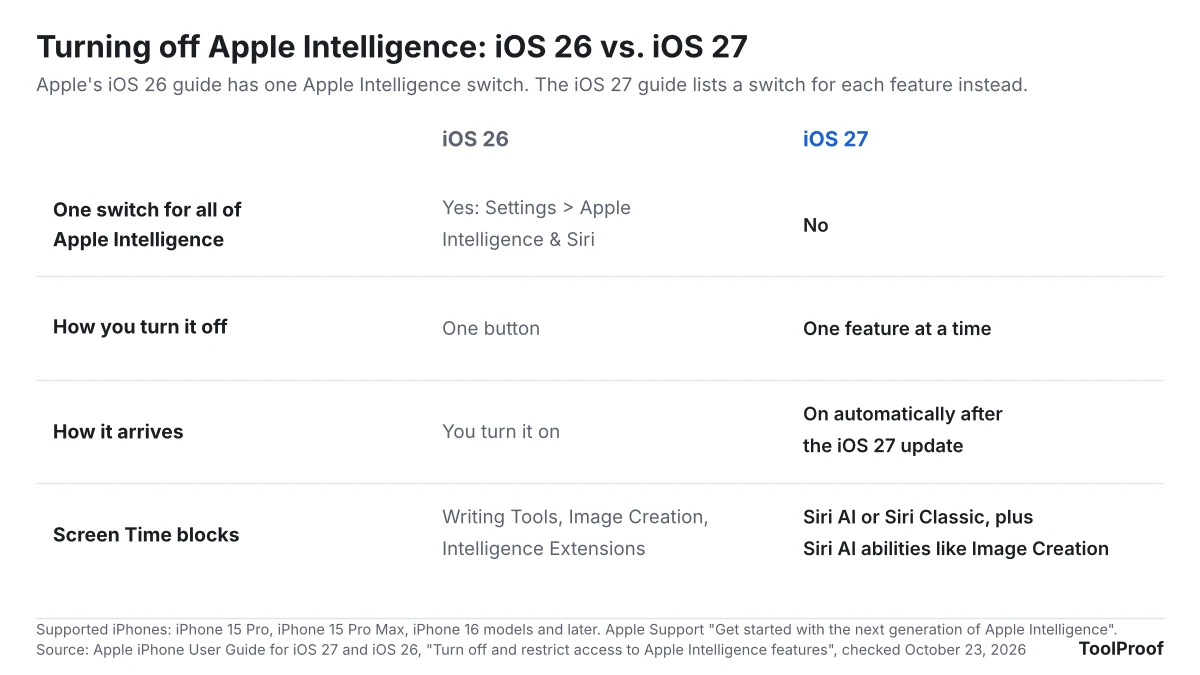
We compared Apple's iPhone User Guide for iOS 27 with the iOS 26 edition on October 23, 2026. The iOS 26 guide still has a Turn off Apple Intelligence section with one button. The iOS 27 guide replaces it with a list of nine separate settings, and some Apple Intelligence tools, such as Writing Tools and Image Playground, have no off switch in that list at all. We didn't have an iPhone running iOS 27, so the menu names below come from Apple's own guides, not our screen.
| Feature | Where to turn it off (iOS 27) |
|---|---|
| Siri AI | Settings > Siri > Turn Off Siri, then Turn on Siri > Siri Classic |
| Notification summaries | Settings > Notifications > Summarize Notifications |
| Priority notifications | Settings > Notifications > Prioritize Notifications |
| Message summaries | Settings > Apps > Messages > Summarize Messages |
| Email summaries | Settings > Apps > Mail > Summarize Message Previews |
| ChatGPT | Settings > Siri > ChatGPT > Use ChatGPT |
| All of Siri AI, for good | Settings > Screen Time > Content & Privacy Restrictions > Siri |
Can you turn off Apple Intelligence completely in iOS 27?
No, iOS 27 has no single switch that turns off all of Apple Intelligence on an iPhone. Apple says the new Apple Intelligence is "integrated deeply into the OS" and is "automatically available on eligible devices" when you update to iOS 27 (Apple Support (opens in a new tab)). Apple's iOS 27 guide to turning off and restricting Apple Intelligence features (opens in a new tab) lists separate settings instead: Siri AI, message summaries, email summaries, notification summaries, priority notifications, personalized Smart Replies in Mail, voicemail suggestions, Call Context cards and Journal writing prompts.
That's a change from iOS 26. Apple's iOS 26 guide (opens in a new tab) still says: "Go to the Settings app, tap Apple Intelligence & Siri, then tap the button next to Apple Intelligence." If your iPhone is still on iOS 26, that one button is the fastest way to turn it all off. You can check your version under Settings > General > About.
Apple Intelligence runs only on the iPhone 15 Pro, iPhone 15 Pro Max, iPhone 16 models and later, including iPhone Air and iPhone Duo. Older iPhones don't have these features, so there is nothing to turn off.
How to turn off Siri AI and go back to Siri Classic
Turning off Siri, then turning it back on with Siri Classic, gives you the older Siri without its AI abilities, according to Apple's iOS 27 guide.
- Open the Settings app and tap Siri.
- Scroll down and tap Turn Off Siri, then tap Turn Off Siri again to confirm.
- To keep using Siri without AI, tap Turn on Siri, then tap Siri Classic.
If you'd rather not have Siri at all, stop after step 2.
Siri AI is still labeled a beta. Apple's guide, updated for iOS 27.2 on October 26, 2026, says it works in English, French, Japanese, Korean, Portuguese and Spanish, isn't available to anyone under 13, won't initially be available in the European Union on iOS and isn't available in mainland China. If any of those applies to you, or your Siri uses another language, you may only have Siri Classic already. iOS 27.2 also let Siri AI recall your past conversations; our breakdown of iOS 27.2's Siri changes covers the new Excluded Apps setting that limits what it reads. To see or clear the conversations Siri AI has saved, use the Siri app, as our guide to Siri history on iPhone explains.
How to turn off notification summaries
Notification summaries turn off under Settings > Notifications > Summarize Notifications, according to Apple's guide to summarizing notifications (opens in a new tab).
- Open Settings and tap Notifications.
- Tap Summarize Notifications.
- Turn off Summarize Notifications.
To keep summaries for some apps and not others, leave the switch on and tap Choose Notifications to Summarize, then turn off the apps you don't want summarized.
Priority notifications, which move the notifications Apple Intelligence thinks matter most to the top of the stack, are a separate switch: Settings > Notifications > Prioritize Notifications. When a priority notification is on your Lock Screen, you can also swipe left on it, tap Options, then tap Turn Off Prioritization.
How to turn off summaries in Messages and Mail
Messages and Mail each have their own summary switch under Settings > Apps, separate from notification summaries.
- Messages: go to Settings > Apps > Messages and turn off Summarize Messages.
- Mail: go to Settings > Apps > Mail and turn off Summarize Message Previews.
While you're in the Mail settings, you can also turn off Personalize Smart Replies, the suggested replies Apple Intelligence writes in your own style.
How to turn off other Apple Intelligence suggestions
Three smaller features have their own switches in apps you might not think to check, according to Apple's iOS 27 guide.
- Voicemail suggestions: Settings > Apps > Phone, then turn off Suggestions in Voicemail.
- Call Context cards: Settings > Siri > Excluded Apps, then tap Add Apps and choose the apps to keep out. These cards bring up information from your other apps during a call, such as a confirmation code or reservation number. On October 23, Apple's guide pointed to Settings > Apps > Phone > Apple Intelligence & Siri > Show When Calling for them; since iOS 27.2 it points to Excluded Apps, which keeps the apps you add out of Siri, Search and suggestions as a whole.
- Journal writing prompts: Settings > Apps > Journal, then turn off Get Writing Prompts.
How to turn off ChatGPT in Siri
ChatGPT is a separate extension, and it turns off under Settings > Siri > ChatGPT by turning off Use ChatGPT, according to Apple's guide to ChatGPT on iPhone (opens in a new tab). If you use Siri AI, the path is Settings > Siri > Extensions > ChatGPT, then turn off Use Extension.
Apple says that when you use the extension without signing in, your request and a few details such as time zone, country, device type and language are sent to ChatGPT, and your IP address is hidden. If you're signed in to a ChatGPT account, OpenAI's own data policies apply.
How to block Siri AI for good with Screen Time
Screen Time is the way to keep Siri AI off so it can't be turned back on from the Siri settings, for example on a child's iPhone. Apple's Screen Time guide (opens in a new tab) gives these steps:
- Open Settings and tap Screen Time.
- Tap Content & Privacy Restrictions, then tap Siri.
- Choose one:
- Siri (Classic Version) to allow Siri without AI.
- Don't Allow Siri to block Siri completely.
- Siri AI (Beta) to allow it, then set Allow or Block for single abilities such as Image Creation, Sensitive Topics or Explicit Language.
Apple notes that the options shown here can vary depending on your Siri version. To stop anyone else from changing them back, Apple's guide to Screen Time passcodes (opens in a new tab) has you go to Settings > Screen Time > Manage Screen Time > Lock Screen Time Settings and enter a four-digit passcode.
In iOS 26, the same Screen Time menu was called Intelligence & Siri and had separate Writing Tools, Image Creation and Intelligence Extensions blocks, according to Apple's iOS 26 Screen Time guide (opens in a new tab). The iOS 27 guide doesn't list a Writing Tools block.
What you can't turn off
Writing Tools, the photo editing tools and Image Playground have no off switch in Apple's iOS 27 guide. The full list of settings Apple gives doesn't include Writing Tools (including automatic proofreading), Clean Up, Extend and Reframe in Photos, Image Playground, Genmoji or Visual Intelligence. Most of these only do something when you tap them, so leaving them alone is the practical way to not use them.
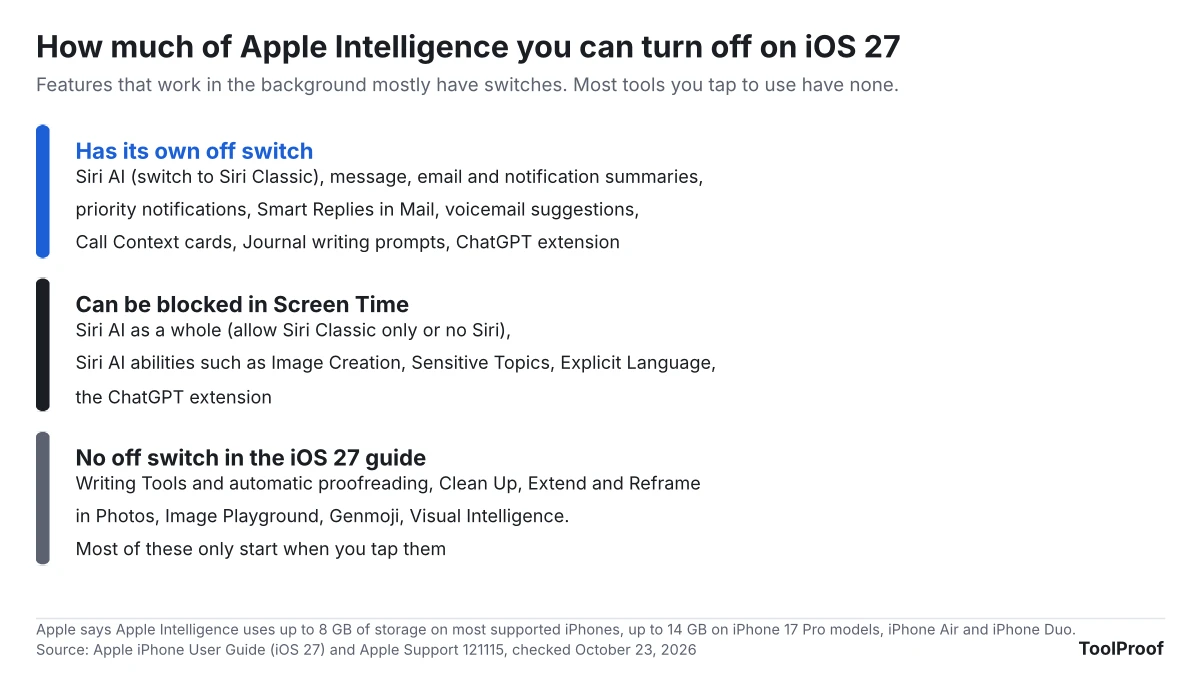
Turning features off also isn't a way to win back storage. Apple says Apple Intelligence uses up to 8 GB on most supported iPhones and up to 14 GB on the iPhone 17 Pro models, iPhone Air and iPhone Duo (Apple Support (opens in a new tab)). Apple's guides don't say that any of the switches above removes those files, so plan on that space staying in use.
How to see what Apple Intelligence sent to Apple's servers
The Apple Intelligence Report shows the requests your iPhone sent to Private Cloud Compute, Apple's servers for tasks too big to run on the phone. Apple's Apple Intelligence and privacy guide (opens in a new tab) gives the path:
- Open Settings and tap Privacy & Security.
- Tap Apple Intelligence Report, then choose last 15 minutes or last 7 days.
- Tap Export Activity to save the report as a file.
If you choose off in step 2, the report stops recording. Apple says data processed in Private Cloud Compute isn't stored or made accessible to Apple, and many requests run entirely on the iPhone and never reach the servers.
How to turn off Apple Intelligence on iPad and Mac
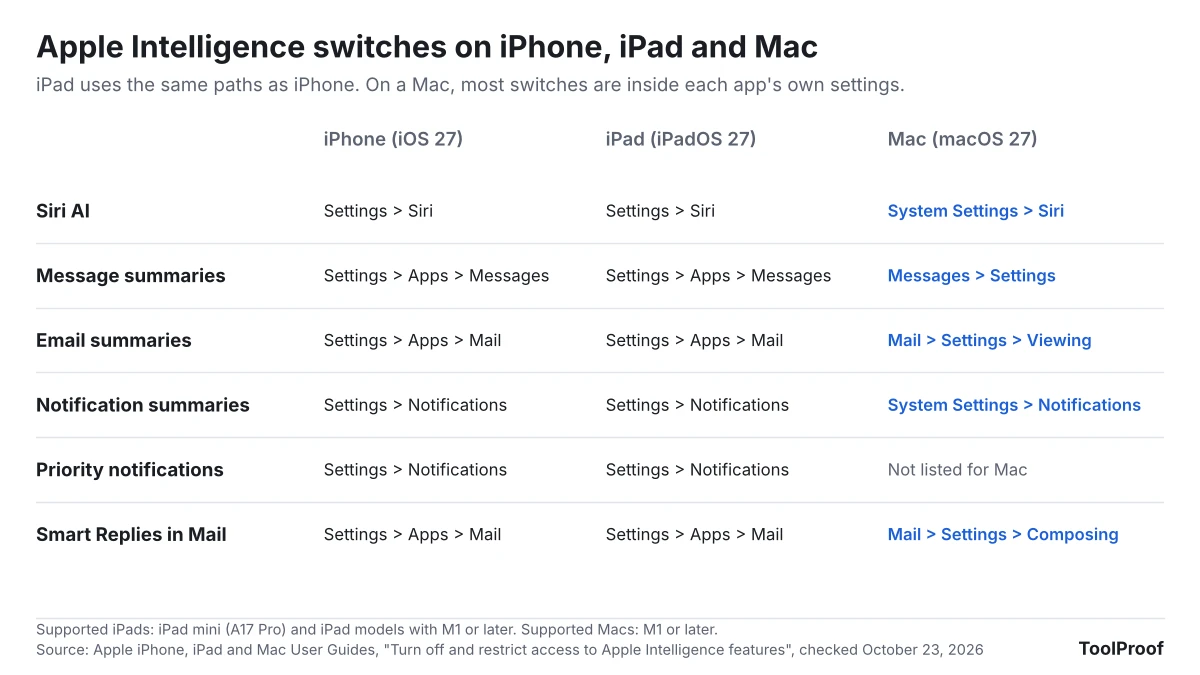
iPad and Mac follow the same feature-by-feature approach as iPhone, according to Apple's iPadOS 27 and macOS 27 guides.
- iPad (iPadOS 27): the iPad guide (opens in a new tab) uses the same Settings paths as iPhone, from Settings > Siri to Settings > Apps > Mail. It covers the iPad mini (A17 Pro or later) and iPad models with M1 or later.
- Mac (macOS 27): the Mac guide (opens in a new tab) turns off Siri AI and notification summaries in System Settings, but message and email summaries and Smart Replies are inside each app: Messages > Settings, Mail > Settings > Viewing and Mail > Settings > Composing. The Mac list doesn't include priority notifications.
How we checked
On October 23, 2026, we read Apple's iPhone User Guide for iOS 27 pages on turning off Apple Intelligence features, notification summaries, ChatGPT, Screen Time and Apple Intelligence privacy, the iPhone User Guide for iOS 26 pages on Apple Intelligence and Screen Time, the iPadOS 27 and macOS 27 guides on turning off Apple Intelligence, and Apple Support's Apple Intelligence overview (opens in a new tab). We didn't have an iPhone, iPad or Mac running the 27 releases, so every menu name comes from Apple's instructions, not our own screens.
On October 27, 2026, the day after iOS 27.2 came out, we read the same pages again, plus Apple's iOS 27 release notes (opens in a new tab) and its iPhone guide pages on Excluded Apps (opens in a new tab) and Clean Up, Extend and Reframe (opens in a new tab). The changes were the Call Context cards entry, the Siri AI languages and age limit, the iPad mini models and the new SynthID watermark on Apple Intelligence images. Every other path in this guide was the same.
Which settings should you turn off?
- If you only want the old Siri back: switch to Siri Classic under Settings > Siri. Nothing else changes.
- If summaries have gotten something wrong: turn off Summarize Notifications, then the Messages and Mail summary switches. These three are where Apple Intelligence rewrites what other people sent you.
- If you're setting up a child's iPhone: use Screen Time to allow only Siri (Classic Version), set a Screen Time passcode, then turn off the summaries.
- If you want AI off everywhere, not just on your iPhone: our guide to turning off AI in Chrome, Gmail, Word and more shows how far each product lets you go, with full guides for Gemini in Gmail, Copilot in Word and AI in Chrome.
FAQ
Does turning off Apple Intelligence affect the Siri settlement?
No. The $250 million settlement over Siri features Apple advertised but didn't ship pays people who bought an eligible iPhone in the U.S. between June 2024 and March 2025, whatever settings they use now. Our Apple Siri settlement guide covers who can claim and the December 21, 2026 deadline.
How do I tell if an image was made with Apple Intelligence?
Upload it to Google's SynthID Detector (opens in a new tab). Since iOS 27.2, most images created or edited with Apple Intelligence tools, such as Image Playground and Clean Up in Photos, carry a hidden SynthID watermark, and Apple's iPhone guide (opens in a new tab) points you to SynthID Detector to check for it rather than to a checker on the iPhone. Our guide on how to check if an image is AI-generated walks through SynthID Detector and the other free tools, and what a negative result does and doesn't prove.